How to Use a Hyperlinked Digital Planner on reMarkable
In this guide:
Most people assume a digital planner is just a PDF you happen to write on. A properly built hyperlinked digital planner reMarkable file is closer to a small app: tap a date, land on that exact page, tap a tab, jump sections, and never scroll through eleven blank months hunting for where you actually are.
The value here has nothing to do with looking modern. It's about deleting the ten seconds of flipping you do on paper, multiplied by every page turn you'll make over a year. That adds up to hours, not minutes, and it's the single feature that separates a planner that feels faster than paper from one that just feels fancier than paper.
Average taps from the cover page to today's exact daily page in a properly hyperlinked Key2Success planner.
Blank future months you have to flip past to find where you currently are, unlike a printed planner.
reMarkable's PDF hyperlinks activate with a finger tap, not the pen tip — the most common first-time mix-up.
What a Hyperlinked Digital Planner Actually Is
A hyperlinked PDF has clickable zones built into specific words, numbers, or icons on the page. Tap one, and the reMarkable jumps straight to the linked page, the same way a link on a webpage takes you somewhere else. reMarkable added native support for these PDF hyperlinks and gestures directly into the device software, so any properly built file takes advantage of it automatically.
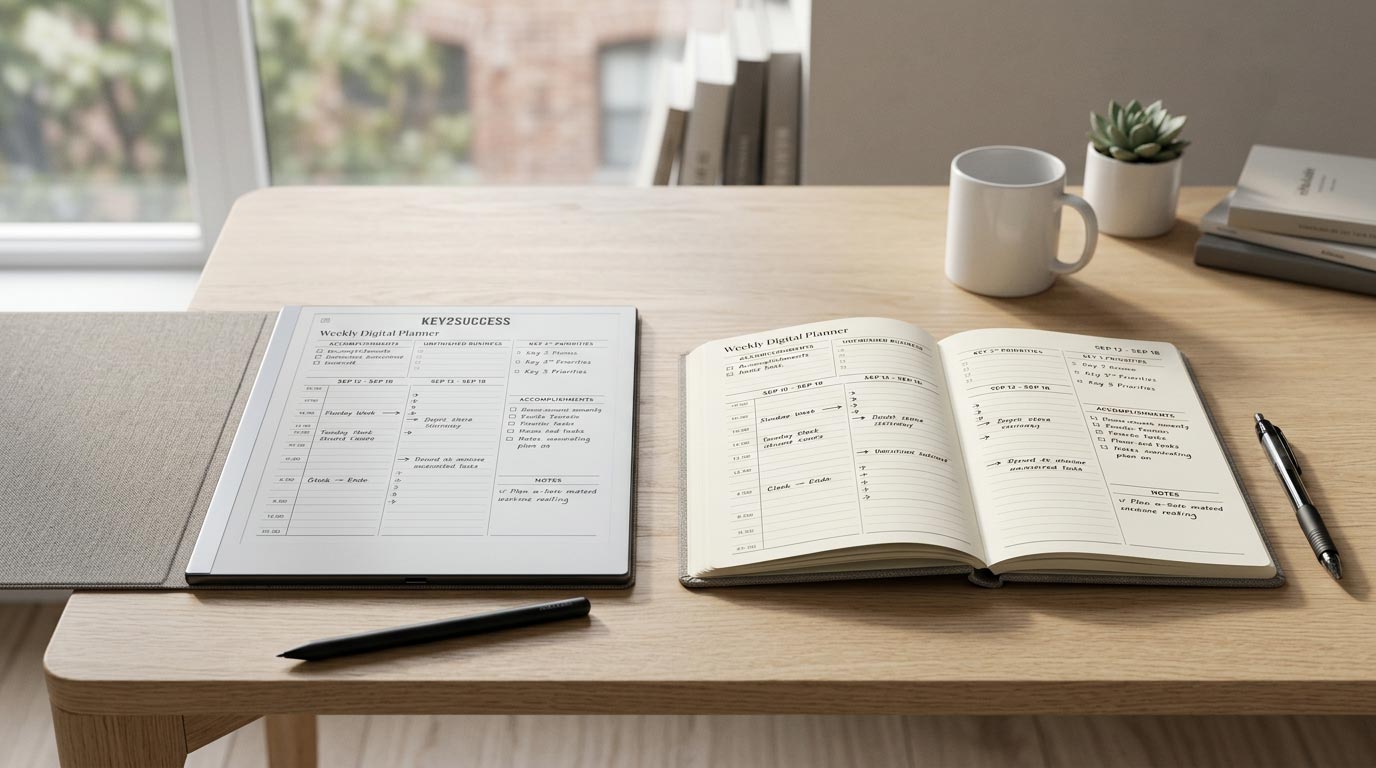
The Key2Success planner ships fully hyperlinked out of the box. You don't build the navigation yourself or turn a setting on. Once you've installed the planner file, every tab, date, and cross-reference is already live the moment the page loads.
One detail that trips up almost everyone the first time: hyperlinks respond to a finger tap, not the pen. If you tap a linked date with the stylus tip and nothing happens, that's expected. Switch to your finger and it works immediately.
Jumping Between Year, Month, Week, and Day
The core navigation in a hyperlinked Key2Success planner follows one consistent path: cover to year overview, year to the month you tap, month to the week you tap, week to the specific day. Each level zooms in one step at a time, and each page links back up a level too, so you're never stuck on a page with no way out except the file browser.
Most editions also build in a jump-to-today shortcut on the cover or year page, so you can skip the month-by-month drilling entirely and land on the current date in a single tap once you know where that link lives.
Using Tabs and Index Pages
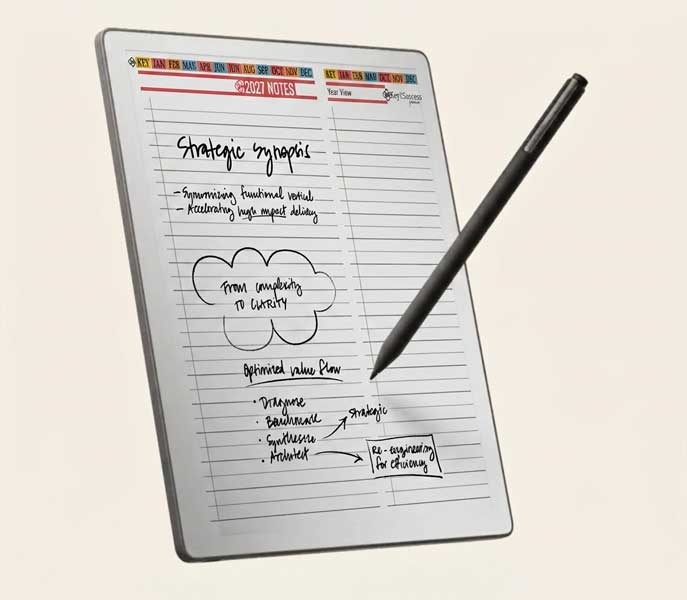
Tabs are the small labeled strips that sit along the edge of every page, visible no matter how deep you are in the planner. Tap "Goals" from a random Tuesday in June and you land on the goals section immediately, no backtracking through the month and year views required.
Index pages work similarly but for reference material: project lists, a contacts page, or a running list of meeting notes. Instead of a tab you tap once from anywhere, an index page gives you a menu of links to tap from, which matters once you've built up months of notes you need to find again quickly.
Linking Out to Note Pages
The most underused part of a hyperlinked planner is the two-way link between a daily page and its note pages. Tap a "Notes" link from a Tuesday, and you land on a blank or dedicated note page. On a well-built file, that note page links back to the exact Tuesday that created it, so you're never left wondering which day a page of notes belongs to.
If you want more note pages than the default layout gives you, or you want a specific layout for meeting notes, project tracking, or habit logs, that's exactly what Tiles by Key2Success are built for — custom page layouts you can drop into the file without breaking the existing navigation.
Why a Linked Planner Beats a Loose PDF
Plenty of "digital planners" sold online are just a scanned or exported PDF with no links at all. They look identical to a hyperlinked file in a thumbnail preview, and they behave completely differently the moment you start using them. A loose PDF makes you scroll or swipe through every single page in order, exactly like flipping a paper notebook, except now you're doing it on a six-inch screen instead of a spread you can see all at once.
A hyperlinked file skips that entirely. You go from cover to today in a couple of taps regardless of how many pages sit between them. The gap between the two only gets wider as the planner fills up: a loose PDF gets slower to navigate every month you use it, while a hyperlinked one stays exactly as fast in December as it was in January.
Speed Tips: Paper Pure vs reMarkable 2 Navigation
The links behave identically across every reMarkable model, but the tap response feels different depending on the device. In hands-on testing, tapping between tabs on the Paper Pure is noticeably quicker than on a reMarkable 2, which adds up over a day of jumping between your daily, weekly, and goal pages. If you're still deciding which device to run your planner on, our Paper Pure vs reMarkable 2 comparison breaks down the display and speed differences in full.
- Use the jump-to-today link instead of drilling down through month and week views when you just need the current day
- Favorite the planner file itself so you're never navigating a folder tree just to open it
- Tap with your finger, not the pen — the single most common reason a "broken" link is actually working fine
Every Key2Success Planner edition ships fully hyperlinked, with no setup required beyond installing the file.
Shop Key2Success for reMarkable3-Step Navigation Warm-Up
New to a hyperlinked planner? Run through this once and the whole structure clicks in under two minutes.
- From the cover page, tap into the current month, then tap into the current week
- From the week view, tap into today's exact daily page
- Tap one tab (Goals or Notes) from that daily page, then use its back-link to return to today
The Takeaway
A hyperlinked planner isn't a nicer-looking PDF. It's the difference between a digital planner that's actually faster than paper and one that's just fancier than paper. Most of the "digital planning feels clunky" complaints trace back to someone using a loose, unlinked PDF and assuming that's what every digital planner feels like.
Get the navigation right once, and every day after that is a couple of taps instead of a page flip. Grab the Key2Success Planner for reMarkable above and see the difference for yourself.
FAQ: Hyperlinked Digital Planner reMarkable
What is a hyperlinked digital planner on reMarkable?
It's a PDF planner with clickable links built into dates, tabs, and index pages, so tapping a link jumps you straight to that page instead of scrolling or flipping through the file in order.
Do all Key2Success planners come hyperlinked, or do I need to add links myself?
Every Key2Success edition ships fully hyperlinked out of the box. There's no setup step to enable navigation — it's already live the moment you open the file after installing it.
Do hyperlinks still work if I export the planner as a PDF?
Generally yes if you export as a standard PDF, but some third-party viewers or conversion tools can strip embedded links. Opening the file in reMarkable's native reader is the most reliable way to keep navigation intact.
Can I add my own hyperlinked note pages to the planner?
You can insert additional pages, though they won't automatically link into the existing tab structure unless they're built that way. Tiles by Key2Success are designed specifically to add custom pages without breaking the planner's existing navigation.
Does navigation speed differ between reMarkable models?
The links themselves work identically on every model, but tap response time varies by device, with the Paper Pure responding noticeably faster than the reMarkable 2 in hands-on use.
Quick Answers
Does the hyperlinked planner work on a reMarkable 1?
Yes, the same hyperlinked PDF installs and navigates identically on the reMarkable 1, reMarkable 2, Paper Pro, and Paper Pure.
Do I need a reMarkable Connect subscription to use hyperlinked navigation?
No, tap-to-navigate links are built into the PDF itself and work with no subscription required.
Can I tap a hyperlink with the stylus instead of my finger?
No, reMarkable's PDF hyperlinks only respond to finger gestures, not the pen tip.
Will the tab strip still show if I zoom in on a page?
Yes, tabs remain visible along the edge of the page at normal zoom levels used for writing.
How many taps does it take to get from the cover to today's page?
Usually two to three taps in a properly built Key2Success file, depending on the edition and whether a jump-to-today shortcut is included.
Can I change where a tab jumps to?
Not without editing the underlying file structure — Tiles by Key2Success are the supported way to add or customize pages.
Do note pages automatically link back to the day that created them?
Yes, in the Key2Success system, note pages include a back-link to the specific daily page they were opened from.
Does a hyperlinked PDF get slower to navigate as I add more handwritten pages?
No, tap navigation stays just as fast regardless of how many pages you've filled in.
Can I use hyperlinked navigation without wifi?
Yes, navigation is built into the file itself and works fully offline.
Does favoriting the file affect its internal links?
No, favoriting or starring the file only affects how quickly you can find and open it — it has no effect on the links inside.
Sources
- reMarkable 2 hyperlinks and gestures feature release — brandenbodendorfer.com
- Paper Pure vs reMarkable 2 comparison video — Key2Success Planner
- How to Install the Key2Success Planner on Your reMarkable — Key2Success Planner
- Customize Your reMarkable Planner with Tiles by Key2Success — Key2Success Planner
Pingback: Daily Planning on reMarkable: A System That Actually Sticks
Pingback: Customize Your reMarkable Planner with Tiles by Key2Success