Customize Your reMarkable Planner with Tiles by Key2Success
In this guide:
Most people never need to touch a single one of these reMarkable planner templates. The native daily, weekly, monthly, and goal pages built into every Key2Success planner edition cover the vast majority of how people actually plan, and if that's true for you, this entire article is optional reading. But a specific gap shows up often enough that it's worth solving properly: a workflow the default pages simply weren't built for, a habit grid, a client tracker, a reading log, a project board. That's what Tiles by Key2Success exist to close.
Customization is a fix for a specific gap, not a requirement for a good planning system. Don't feel behind for sticking with the native pages if they already work for you.
Tiles are built to drop into your existing hyperlinked file without disturbing the navigation already in place.
Tiles live inside the same planner file you already have, not a separate app or a second document to manage.
Every Key2Success edition, Personal through Executive, supports the same Tile system.
Native Templates vs Custom Tiles
The native pages in a Key2Success planner are fixed by design: the same daily, weekly, monthly, and goal-setting layout ships in every edition, built around the workflows covered in the rest of this content cluster. That consistency is a feature, not a limitation. Most planning needs fit inside a well-designed default.
Tiles are the opposite: optional, added on top, and built for the specific formats that don't fit a general-purpose daily or weekly page. Think of native pages as the planner's foundation and Tiles as the rooms you add on only if you actually need the extra space.
What Tiles by Key2Success Are
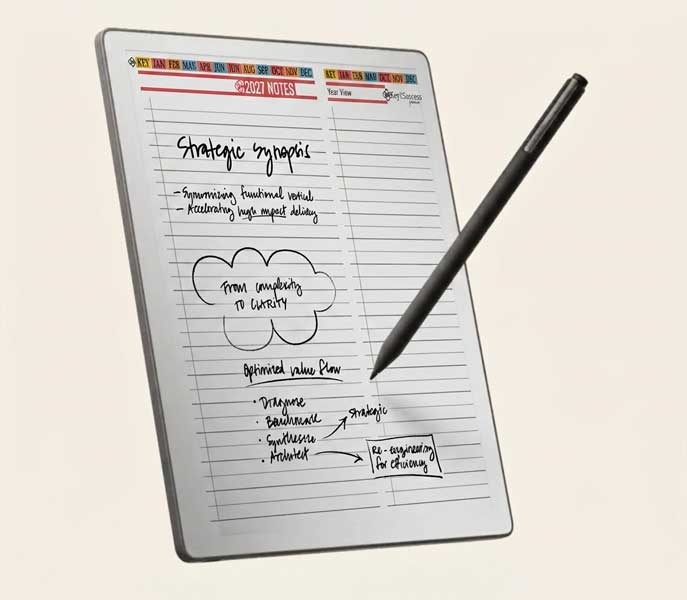
A Tile is a single custom page layout, built to the same visual standard as the rest of the Key2Success system, designed to solve one specific tracking or planning need. Some examples: a habit tracker grid, a reading or book log, a project or client collection page, a meeting-notes variant built for a specific recurring meeting type. Each Tile is a standalone page you insert into your file, not a separate app or a different file format to manage.
Build Your Own Page Layouts
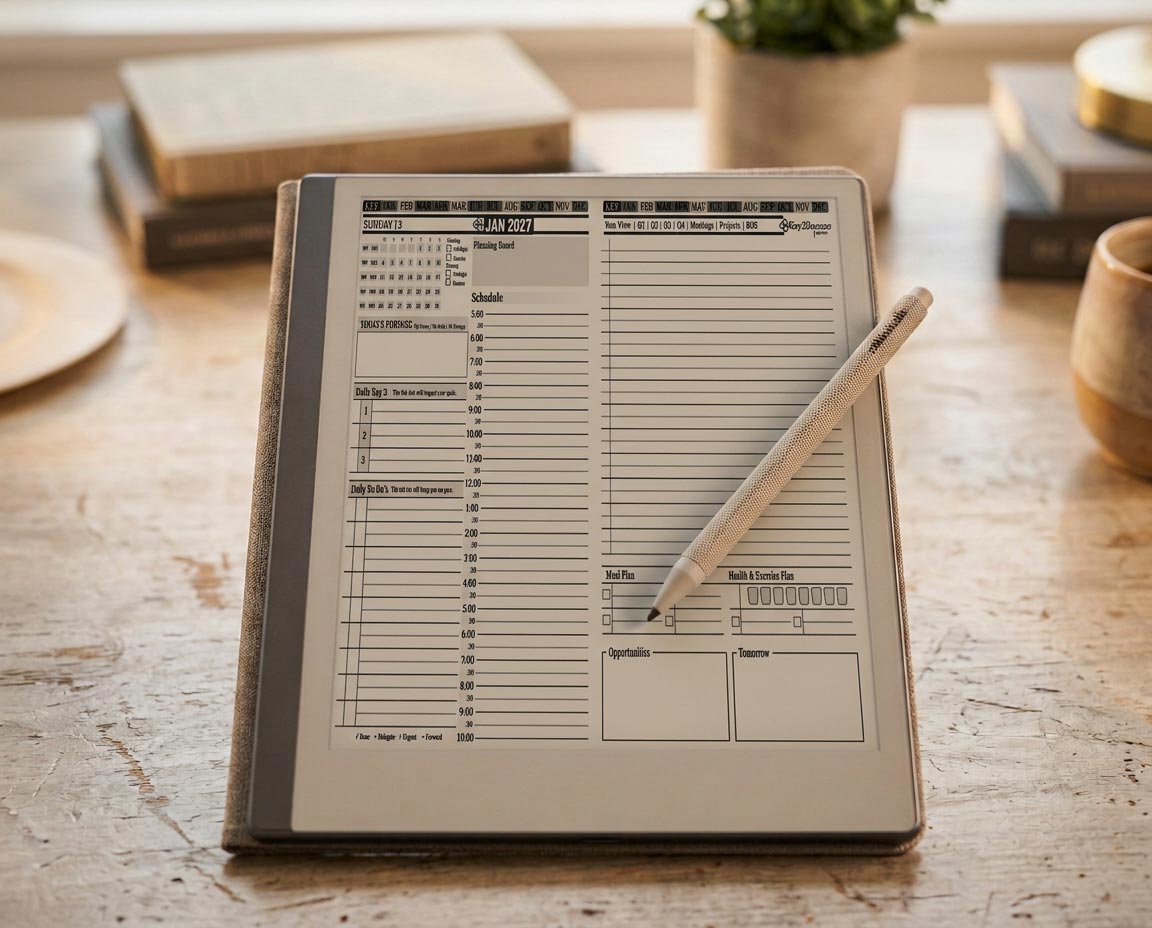
Adding a Tile follows the same basic pattern regardless of which one you're using: import the Tile page the same way you'd import any PDF onto your reMarkable, then place it in the folder alongside your planner file. Screen size affects how much detail a dense tracker or grid-style Tile can comfortably hold at a glance, so if you're deciding which reMarkable to build a heavily customized system on, our Paper Pure vs reMarkable 2 comparison covers the display differences worth knowing before you commit to a dense custom layout.
Add Trackers and Collections
Trackers and collections are where Tiles earn their keep. A habit tracker gives you a grid you'd otherwise have to draw by hand every week. A collection page, a running list of books, clients, or projects, gives you one place to scan instead of hunting across a dozen daily pages for the same recurring reference. If you're already running a quarterly goal-tracking system, a dedicated Tile is usually a cleaner fit than trying to squeeze a progress tracker onto a page designed for something else.
Keep Navigation Intact
The one mistake that actually breaks a customized planner is dropping a new page in without connecting it to anything. A Tile that isn't linked from anywhere becomes a page you forget exists. Before adding a Tile, decide where it should be reachable from, usually a tab or an index page, the same way every other page in a hyperlinked planner is reachable from somewhere else. A well-placed Tile takes the same couple of taps to reach as any native page. A poorly placed one just sits there unused.
Where to Get Tiles
Tiles are available through the Key2Success shop and pair with any edition you're already running. If you haven't installed your base planner yet, start with our install guide first; adding a Tile on top takes about the same two minutes once the base file is in place.
Browse Tiles by Key2Success and the full reMarkable planner lineup, all built to work together in one hyperlinked file.
Shop Key2Success for reMarkableDo You Need a Tile? 3-Question Check
Answer these before buying a Tile. Two or more "yes" answers means it's worth adding.
- Is there a specific thing you track or reference regularly that doesn't fit any native page?
- Have you already tried working around this with a sticky note, a separate app, or a messy daily-page workaround?
- Would having one dedicated page for this actually save you time, not just look more organized?
The Takeaway
The native pages are enough for most people, and that's by design, not a shortcoming. Tiles exist for the specific gap a general-purpose daily and weekly system can't close, not as a checklist of upgrades everyone needs to add. Adding a Tile you don't actually need just gives you one more unused page cluttering a file that used to be simple.
Add a Tile when a real, recurring need shows up, connect it to your navigation properly, and leave the rest of the planner exactly as it already works for you.
FAQ: reMarkable Planner Templates
What's the difference between native reMarkable planner templates and Tiles?
Native templates are the fixed daily, weekly, monthly, and goal pages built into every Key2Success edition. Tiles are optional add-on pages for specific needs, like trackers or collections, that the native layout doesn't cover.
Do Tiles work with every Key2Success edition?
Yes, Tiles are designed to pair with any Key2Success edition, from Personal through Executive.
Will adding a Tile break my planner's existing navigation?
Not if it's linked in properly. A Tile that isn't connected to a tab or index page becomes hard to find, but it won't damage the links already built into the rest of your planner.
Do I need a reMarkable Connect subscription to use Tiles?
No, Tiles are PDF pages that import and navigate the same way as the rest of your planner, with no subscription required.
How do I know if I actually need a Tile?
If you're already working around a specific gap with a sticky note, a separate app, or a messy page, and a dedicated page would genuinely save time rather than just add clutter, a Tile is likely worth it.
Quick Answers
Do Tiles work on every reMarkable model?
Yes, Tiles are PDF pages that work identically on the reMarkable 1, reMarkable 2, Paper Pro, and Paper Pure.
Can I use more than one Tile at a time?
Yes, you can add as many Tiles as you actually need; there's no limit built into the system.
Do Tiles come pre-built, or do I design them myself?
Tiles by Key2Success come pre-built for common needs like habit tracking and collections; you're not designing a layout from scratch.
Can I remove a Tile later if I stop using it?
Yes, you can delete an unused Tile page the same way you'd remove any other page from your reMarkable file.
Do Tiles cost extra beyond the base planner?
Yes, Tiles are a separate add-on to the base Key2Success planner edition, purchased individually or as a set.
Will a Tile look visually consistent with the rest of my planner?
Yes, Tiles are designed to match the visual style of the Key2Success system they're built for.
Can I use Tiles without wifi?
Yes, once imported onto your device, Tiles work fully offline like the rest of your planner.
Do I need to reinstall my whole planner to add a Tile?
No, a Tile imports as an additional page alongside your existing planner file; it doesn't require reinstalling anything.
Sources
- How to Use a Hyperlinked Digital Planner on reMarkable — Key2Success Planner
- How to Install the Key2Success Planner on Your reMarkable — Key2Success Planner
- Goal Setting on reMarkable with Vision and Yearly Pages — Key2Success Planner
- Paper Pure vs reMarkable 2 comparison video — Key2Success Planner