Meeting Notes on reMarkable: Capture, Convert to Text, and Act
In this guide:
Most reMarkable meeting notes fail for a reason that has nothing to do with handwriting. The notes get taken, the meeting ends, and nothing ever happens to them again. A notebook full of meeting notes nobody revisits isn't a record. It's a very organized way of forgetting things.
A workflow that actually holds up does four things after every meeting: converts the handwriting to text, pulls the action items out of that text, sends the notes somewhere useful, and files them where a future search will actually find them. This meeting-notes page is one piece of the broader Key2Success planner system, and if you haven't set up your planner yet, our install guide covers that first step in about two minutes.
Cost to convert handwritten notes to text on-device. No reMarkable Connect subscription required for this specific feature.
Typical accuracy for converting clearly printed handwriting into typed text.
A single repeatable meeting-notes template beats starting from a blank page every single meeting.
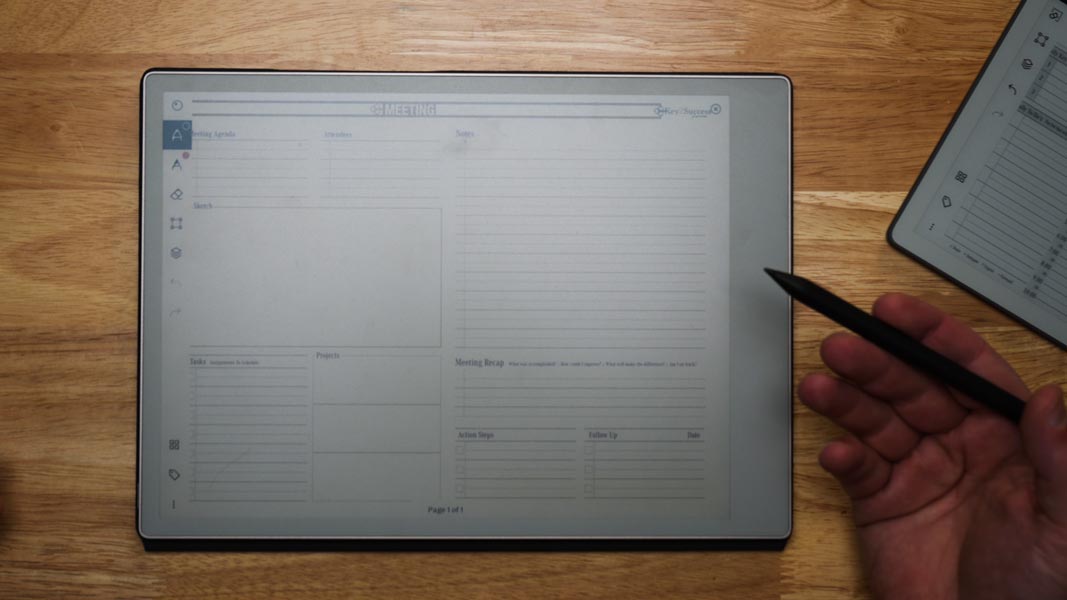
A Repeatable Meeting-Notes Page
The single biggest upgrade to how meeting notes get used later has nothing to do with handwriting speed or app features. It's using the same page layout every time: a header for date, attendees, and topic, a body section for notes taken during the discussion, and a dedicated action items area at the bottom that's never mixed in with general notes.
A repeatable template also pairs naturally with the rest of a daily system. If a meeting produces a task, it should land in the same place your other daily priorities live, not stranded on a meeting page you may not open again until the next meeting with that person.
Capture by Hand During the Meeting
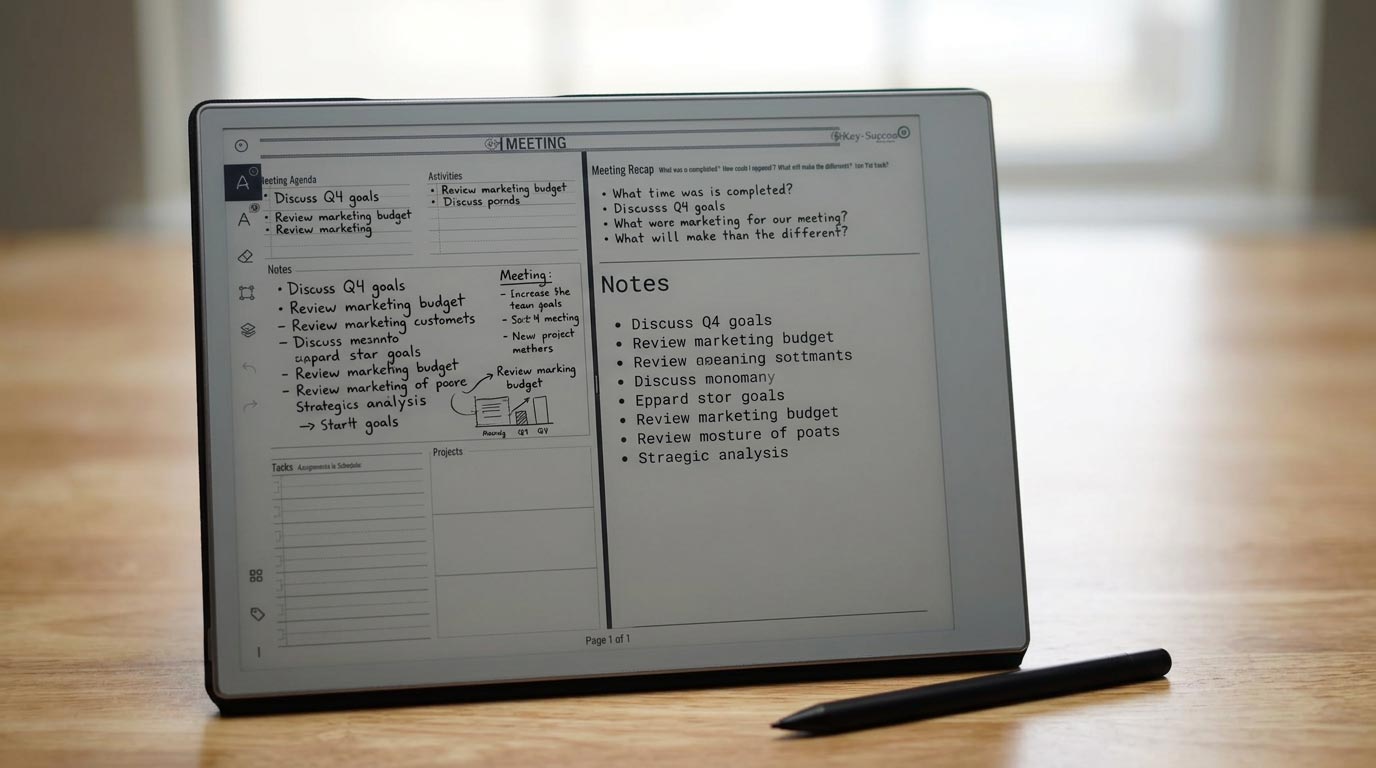
Write during the meeting, not after it. Waiting until a meeting ends to reconstruct what happened loses the specific wording of decisions and, more importantly, loses who agreed to do what. You don't need to capture every sentence. Capture decisions, owners, and deadlines in the moment, and let the general discussion stay looser.
Resist the urge to write neatly. Legible enough to convert later matters more than tidy. The next step handles the cleanup.
Convert Handwriting to Text
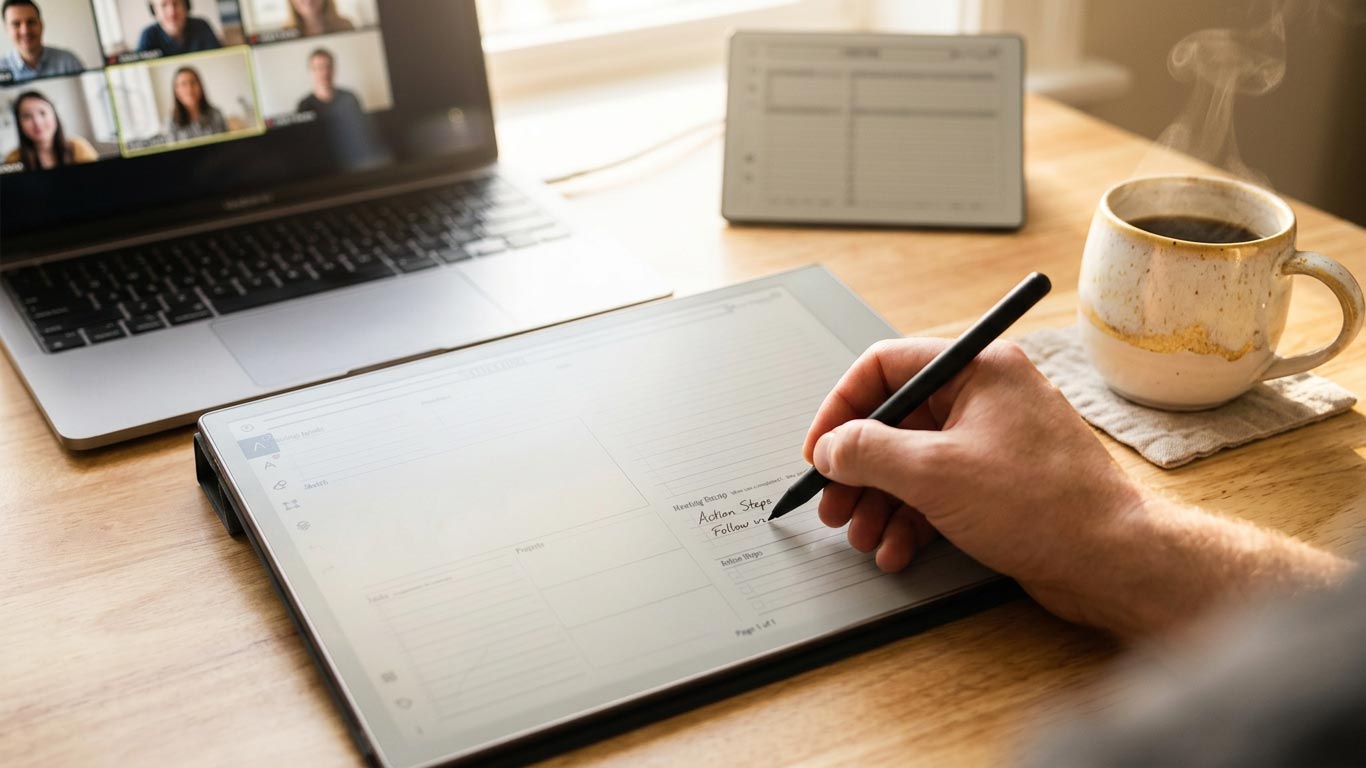
Once the meeting ends, select your handwritten notes and use reMarkable's built-in Convert to Text tool directly from the page menu. This runs on the device itself and costs nothing. No reMarkable Connect subscription is required to turn a handwritten page into typed text you can copy, email, or export.
Accuracy depends on your handwriting style: clearly printed text typically converts at 90 to 95 percent accuracy, while cursive lands lower, generally 75 to 85 percent depending on legibility. If your meeting notes come out cursive and messy, a quick proofread after converting is worth the thirty seconds it takes.
Pull Out Action Items
Converted text is still just notes until someone separates what was discussed from what needs to happen. Scan the converted text for names attached to a task and any date that was mentioned, then move those specifically into your action items section, or directly onto a daily or weekly page as a real task rather than a line buried in meeting notes.
This step is the one people skip most often, and it's the one that actually determines whether a meeting produced anything. Notes without extracted action items get read once and forgotten. Notes with action items pulled into your daily system get done.
Send Notes to Email or Desktop
After converting and extracting action items, send the notes somewhere other than the device itself. The on-device Convert to Text tool can email the typed text directly, no subscription needed, which is usually the fastest way to loop in anyone who was in the meeting with you. If you're a reMarkable Connect subscriber, the desktop app adds handwriting conversion there too, along with unlimited cloud sync, which matters more if you're regularly working from more than one machine.
File Them Where You Will Find Them
Give meeting notes a consistent home, whether that's a dedicated folder on the device, a labeled section in your planner, or a specific inbox in your email if you're sending them out after every call. The specific system matters less than the consistency: notes filed in five different places based on how busy you were that day are notes you'll never successfully search for later.
Every Key2Success edition includes a dedicated meeting-notes page built to pair with reMarkable's Convert to Text tool.
Shop Key2Success for reMarkablePost-Meeting 5-Minute Follow-Through Checklist
Do this immediately after the meeting ends, before moving to the next thing.
- Convert your handwritten notes to text using the page menu
- Proofread quickly, especially if your handwriting leaned cursive
- Pull out every action item with a named owner and a deadline
- Move those action items onto a daily or weekly page, not just the meeting notes
- Send the notes to email or desktop, then file them in the same place you always do
The Takeaway
Most meeting-notes systems fail for a reason nobody blames: handwriting quality. The real failure point is almost always the five minutes right after the meeting, the window where notes either become action items or become a page nobody opens again. Better handwriting doesn't fix that gap. A repeatable process does.
Build the conversion and follow-through into the same habit, and meeting notes stop being a record of what was said and start being a record of what got done.
FAQ: reMarkable Meeting Notes
Do I need a reMarkable Connect subscription to convert meeting notes to text?
No. Converting handwritten notes to text directly on the device is free and doesn't require a Connect subscription. Connect adds handwriting conversion in the desktop app, plus handwriting search and unlimited cloud sync.
How accurate is reMarkable's handwriting-to-text conversion?
Clearly printed handwriting typically converts at 90 to 95 percent accuracy. Cursive handwriting is lower, generally 75 to 85 percent depending on legibility, so a quick proofread is worth doing on messier notes.
Can I send converted meeting notes directly to email?
Yes, the on-device Convert to Text tool can email the typed text directly from the page menu, with no subscription required.
What's the best way to pull action items out of meeting notes?
After converting your notes to text, scan for names paired with a task and any mentioned deadline, then move those specifically onto a daily or weekly page rather than leaving them inside the meeting notes themselves.
Should I use a different page for every meeting or one repeatable template?
Use one repeatable template with a consistent header, notes area, and action items section. A consistent layout makes both note-taking and later searching faster than a fresh, differently structured page each time.
Quick Answers
Does the meeting-notes workflow work on every reMarkable model?
Yes, Convert to Text and the meeting-notes page layout work identically on the reMarkable 1, reMarkable 2, Paper Pro, and Paper Pure.
Can I convert handwriting to text without wifi?
The on-device conversion itself works offline; you'll need wifi to email the converted text or sync it to the cloud.
Can I convert just part of a page instead of the whole thing?
Yes, you can select a specific section of handwriting to convert rather than the entire page at once.
What happens to the original handwriting after I convert it to text?
The original handwritten page stays intact; conversion creates a typed version without erasing your handwritten notes.
Can I convert notes written in a mix of print and cursive?
Yes, though accuracy typically lands between the two, around 80 to 90 percent depending on how consistent the mix is.
Does handwriting search require the same subscription as desktop conversion?
Both handwriting search and desktop app conversion require a reMarkable Connect subscription; only the on-device Convert to Text tool is free.
Can I export converted meeting notes into a document I'm already working on?
Yes, the converted text can be copied and pasted into Word files, Google Docs, or emails after conversion.
How long does converting a page of meeting notes take?
Just a few seconds once you select the text and tap convert; the delay is negligible even for a full page of notes.